
Every hour you spend manually writing up client call notes is an hour you're not billing. For freelancers, that's not a minor inconvenience — it's a direct hit to your income. The good news: a solid AI meeting assistant for freelancers no longer requires an enterprise contract, a credit card, or a 45-minute onboarding call.
This guide covers no-bot browser options, genuinely free tiers, and privacy-first workflows so you can pick what works and start using it today.
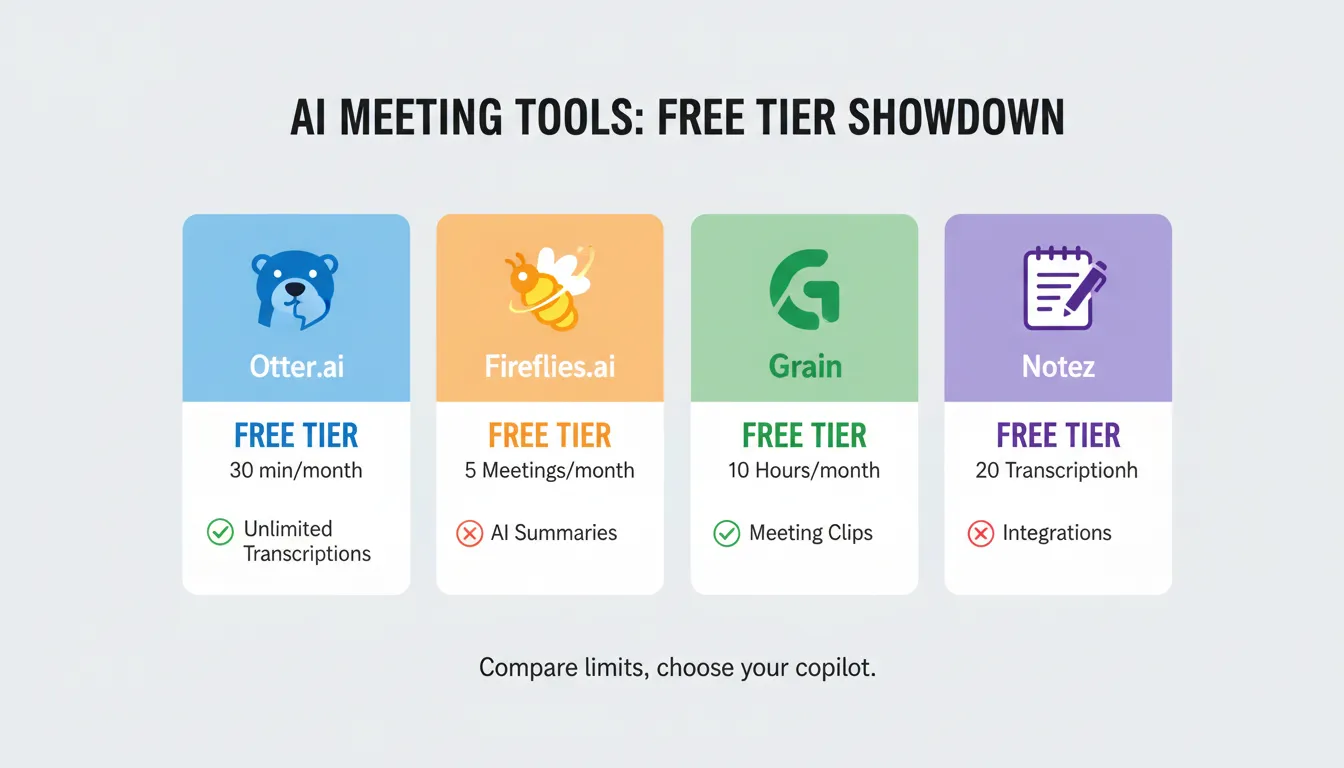
The Best Free AI Meeting Assistants Worth Your Time
Not all "free" plans are equal. Here's what actually holds up:
- Fireflies.ai: Free tier includes 800 minutes of storage per seat and limited transcription credits (source). Best for building a searchable archive of past client calls across Zoom, Meet, Teams, Webex, and 5+ other platforms.
- tl;dv: Solid free plan with AI-powered meeting search on Zoom and Google Meet. Paid Pro plan starts at $18/month (source). Best if you want robust search without paying immediately.
- MeetGeek: Free tier gives you 3 hours of transcription per month with 3 months of transcript storage. Good for freelancers with light call volume.
- Fathom: Covers Zoom, Meet, and Teams. Generous free tier with no aggressive upgrade prompts — a rare thing in this category.
No-Bot Options: Get Transcription Without Adding an AI Agent to Your Call
Some clients get uncomfortable when a bot joins the call. That discomfort is legitimate, and you have real alternatives.
Browser-based transcription using the Web Speech API works directly in Chrome and Edge with zero installation. Tools like Dictation.io and SpeechTexter run entirely in your browser, capturing your microphone input as text in real time. You get a raw transcript you can copy and paste anywhere.
The tradeoff: browser tools only capture what your microphone picks up. If you're on a video call, you'll need to use your computer's speaker output as the input source, which requires a small audio routing tweak in your system settings.
This "no-bot" approach also keeps your client's voice off any third-party server entirely — a meaningful privacy win.
The Manual-AI Workflow: From Raw Transcript to Client-Ready Summary
Browser transcription gives you messy text. Free AI turns it into something professional.
Copy your raw transcript into ChatGPT (free tier) or Claude (free tier) and use a prompt like this:
"Below is a raw transcript from a client call. Please extract: 1) A 3-sentence executive summary, 2) All action items with owners and deadlines, 3) Open questions that need follow-up. Format it as a clean client-facing document."
This takes under two minutes and produces output you can send directly. Use the Word & Character Counter to trim your summary to fit CRM character limits or keep email follow-ups concise.
Protecting Your Client's Privacy
This is the question most freelancers skip until something goes wrong.
Data training opt-outs: Most AI tools use your data to improve their models unless you explicitly opt out. Fireflies, tl;dv, and Otter all have settings to disable this — find them in your account's privacy or data settings before your first call.
Client consent: Add one sentence to your project kickoff script: "I use an AI note-taking tool to capture action items accurately — is that okay with you?" Most clients appreciate the transparency. For sensitive engagements, add a line to your contract.
Local vs. cloud: Browser tools like Dictation.io process audio locally and store nothing remotely. If your client works in a regulated industry (legal, healthcare, finance), local transcription is the safer default.
Your Post-Call Workflow in Practice
Once you've chosen your tool, the routine becomes fast:
- During the call: Use Fathom or tl;dv to mark highlights in real time by clicking a button. These timestamps make post-call editing faster.
- Immediately after: Export the transcript or auto-generated summary. Run it through your ChatGPT prompt if it needs cleanup.
- Calculate your savings: Use the Salary / Hourly Wage Converter to put a dollar figure on the time you're reclaiming. If you bill at $75/hour and save 40 minutes per call across 10 calls a month, that's $500 in recovered billable time.
- Send the follow-up: Paste the cleaned summary into an email or Slack message. Clients notice when you send organized notes within 10 minutes of hanging up.
Before committing time to any setup, run the numbers with the ROI Calculator to confirm the automation pays off relative to your specific call volume.
Final Recommendation
Start with Fathom or tl;dv if you're comfortable with a bot joining your calls — both have genuinely free tiers and produce clean output. If client privacy is a priority, use Dictation.io in Chrome paired with a free ChatGPT prompt. You get professional notes, zero cost, and no third party on the call.
The long-term benefit nobody talks about: a searchable meeting library. After six months, you can query past calls for specific client decisions, commitments, or project context. That's not just a time-saver; it's a professional edge.
Frequently Asked Questions
Q: Which AI meeting assistants are actually free without hidden costs or credit card requirements? Fathom, tl;dv, and MeetGeek all offer free tiers with no credit card required to start. Fireflies.ai also has a free plan, though it limits you to 800 minutes of storage per seat and capped transcription credits.
Q: Can I get meeting notes without installing a Chrome extension or desktop app? Yes. Browser-based tools like Dictation.io and SpeechTexter run entirely in Chrome or Edge with no installation. You get live transcription directly in the browser tab.
Q: How do I protect my client's privacy when using free AI tools? Opt out of data training in your tool's privacy settings, disclose your use of AI note-taking to clients before the call, and use local browser-based transcription for sensitive industries where no data should leave your machine.
Q: Is there a way to use AI for notes without having a bot join my Zoom or Google Meet call? Absolutely. Use a browser transcription tool like Dictation.io to capture audio locally, then paste the raw text into ChatGPT or Claude with a structured prompt to generate a clean summary — no bot, no third-party access to the call.
Q: How do I turn a raw transcript into a professional summary for a client using free tools? Paste the transcript into ChatGPT's free tier with a prompt asking for an executive summary, action items with owners, and open questions. The output is typically client-ready in one pass, and you can use the Word & Character Counter to fit it to any length requirement.